Configure Shortcuts for Automatic Wallpaper Changes
Tutorial
1. Edit the Installed Shortcut
In the Shortcuts app, open the shortcut you just installed.
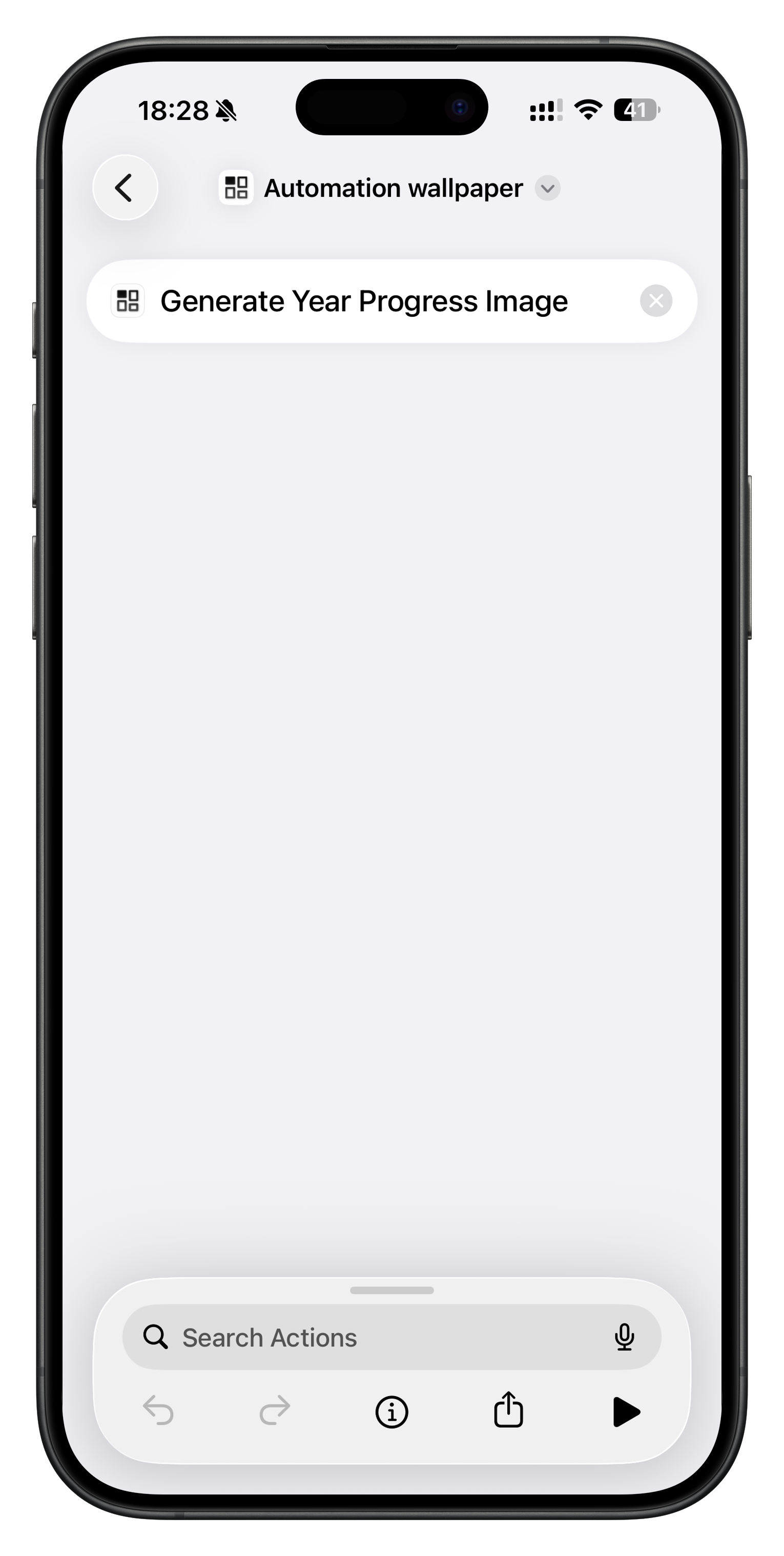
Search for Wallpaper in the action search bar.
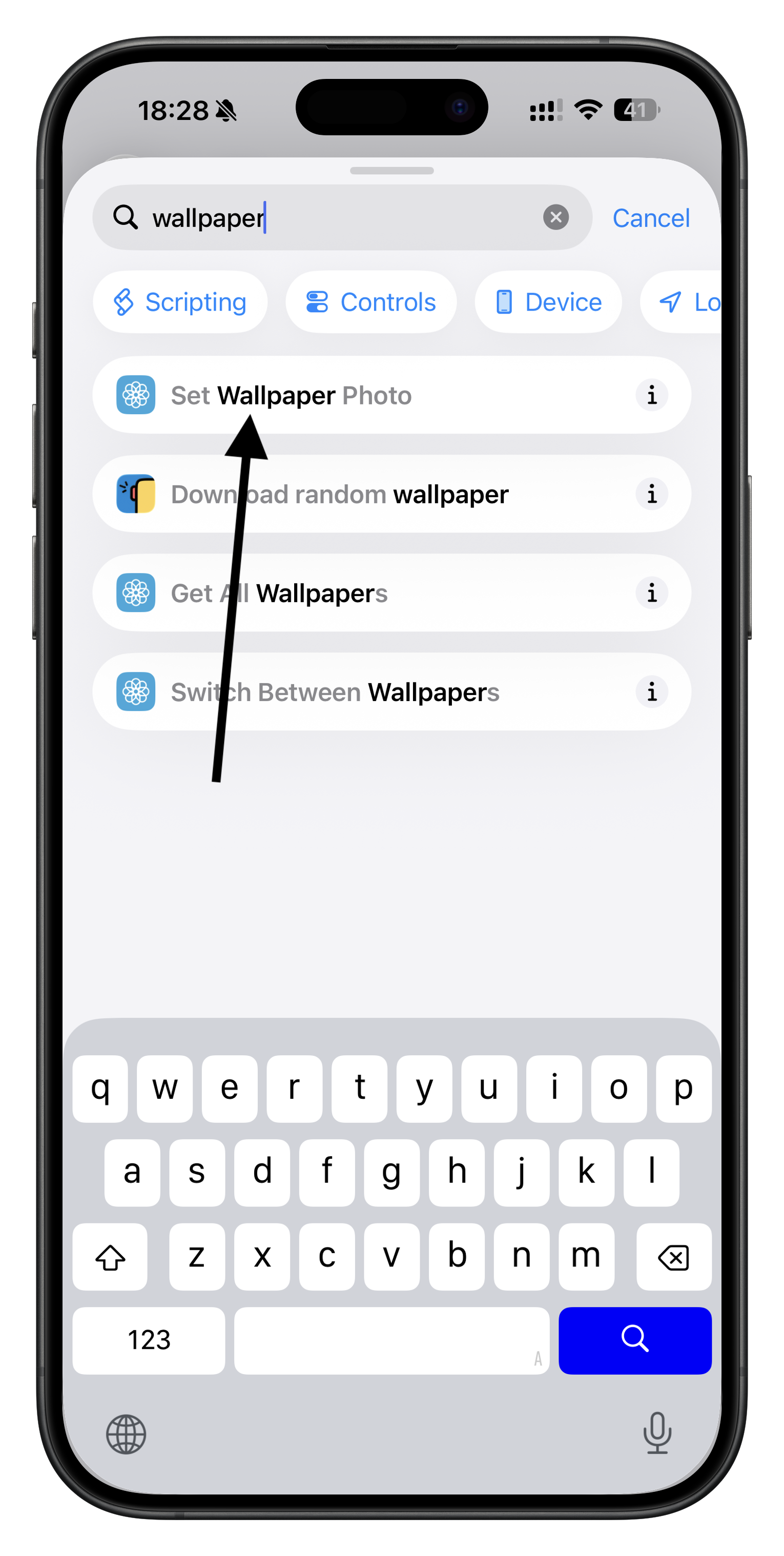
Tap to add it to the shortcut.
- Here, you can choose to change both the Lock Screen and Home Screen wallpapers, but it is recommended to only select the Lock Screen wallpaper.
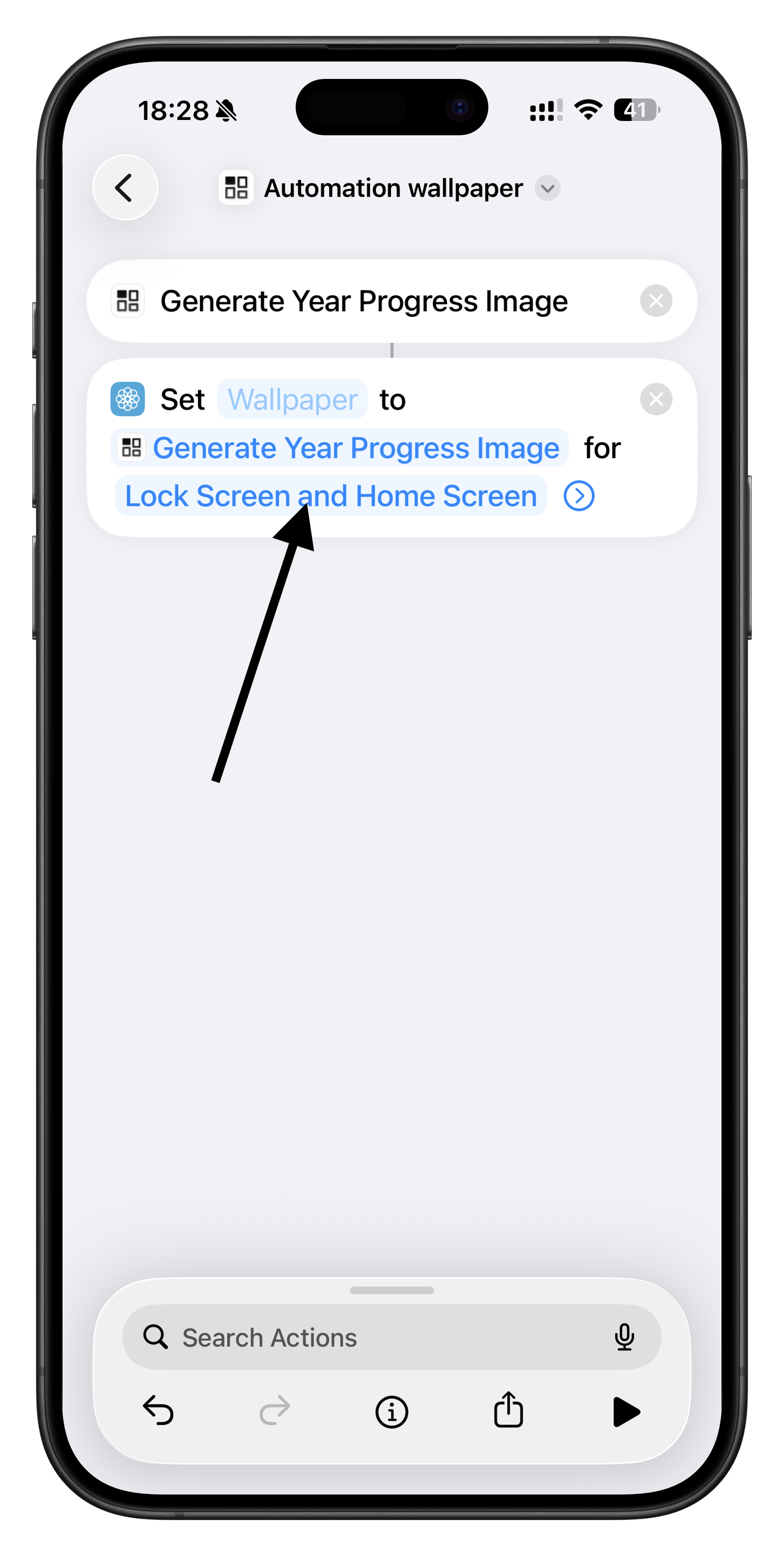
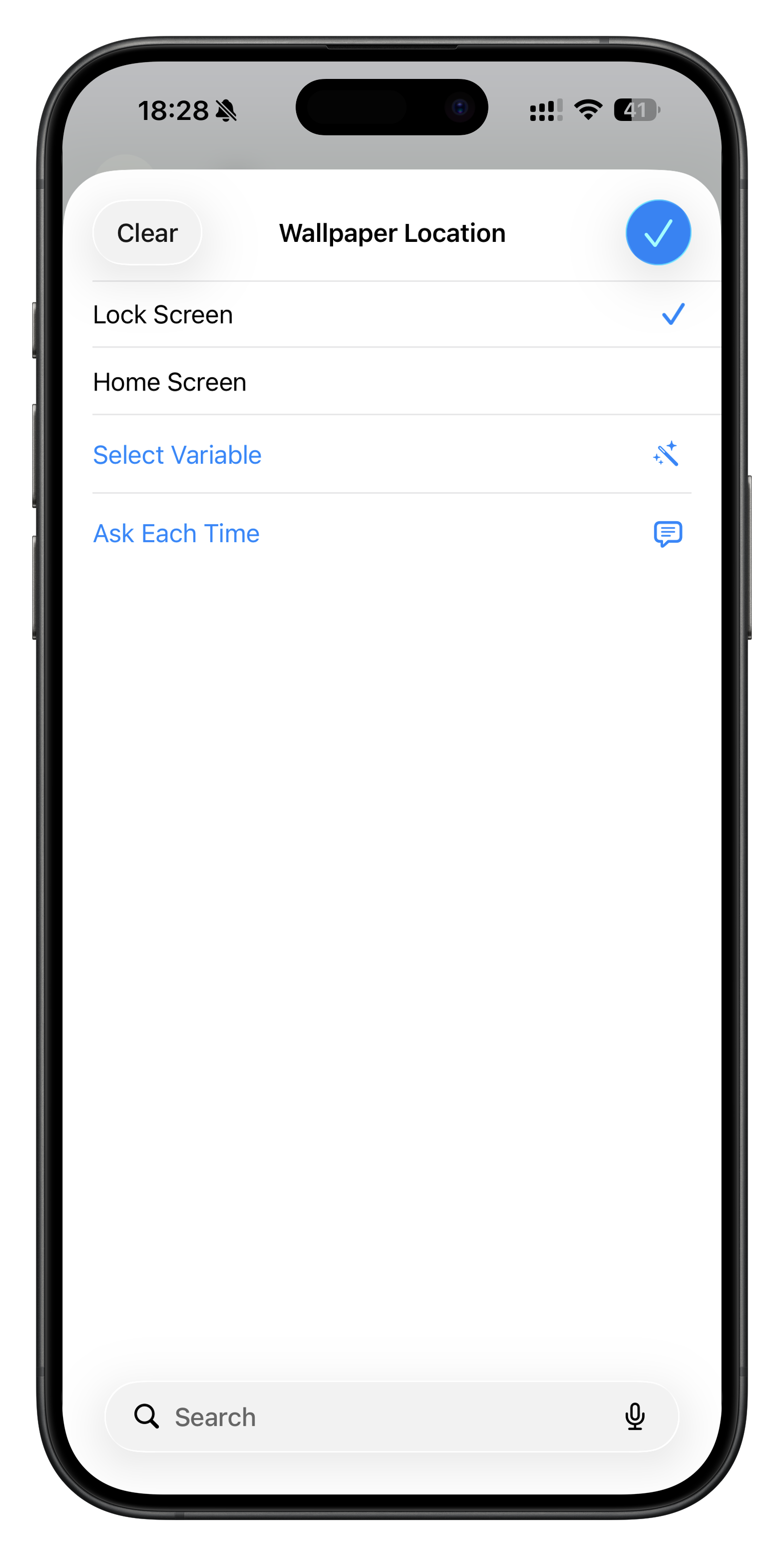
2. Configure the Lock Screen Wallpaper to Replace
Tap the location indicated by the arrow.
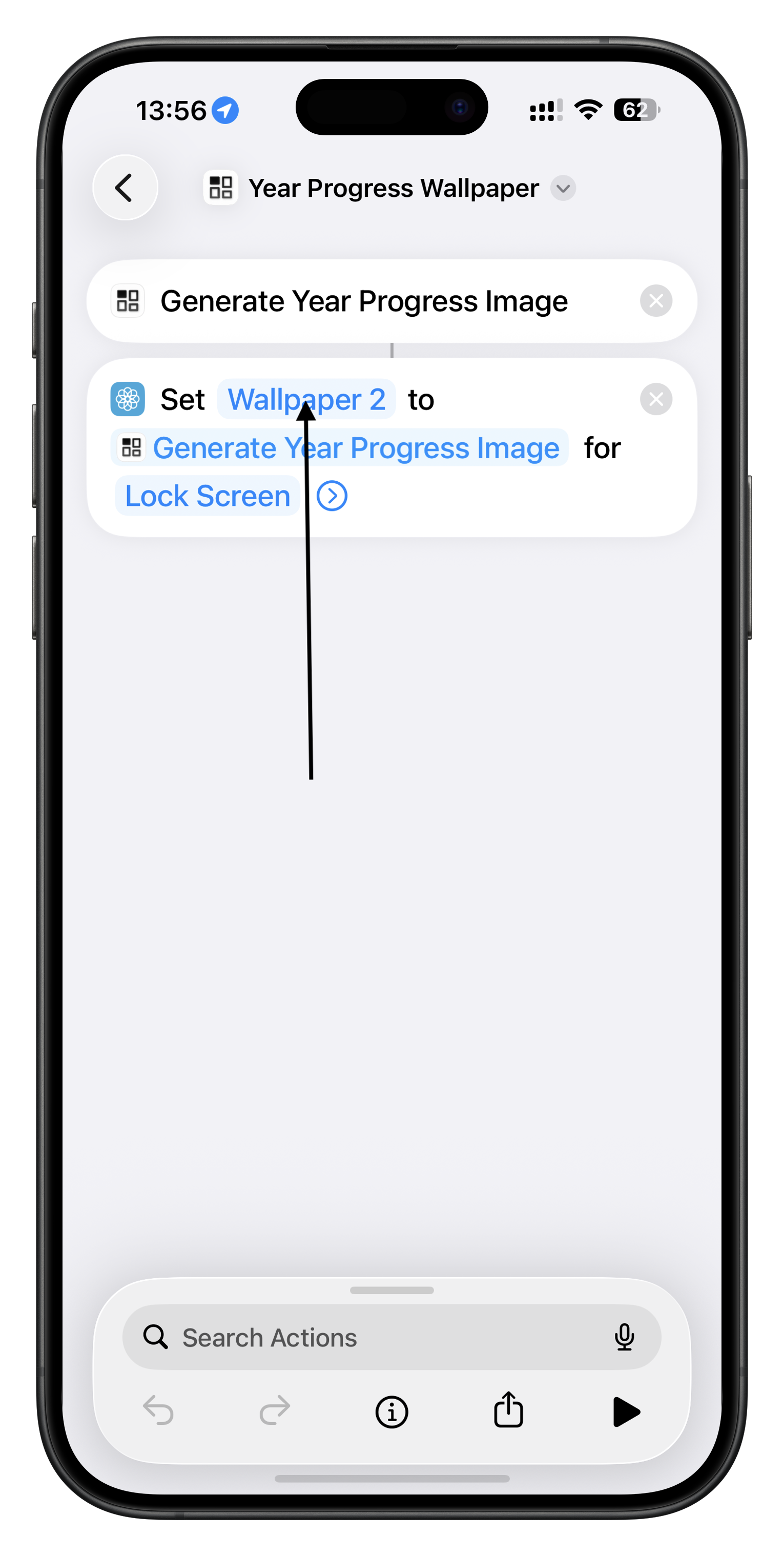
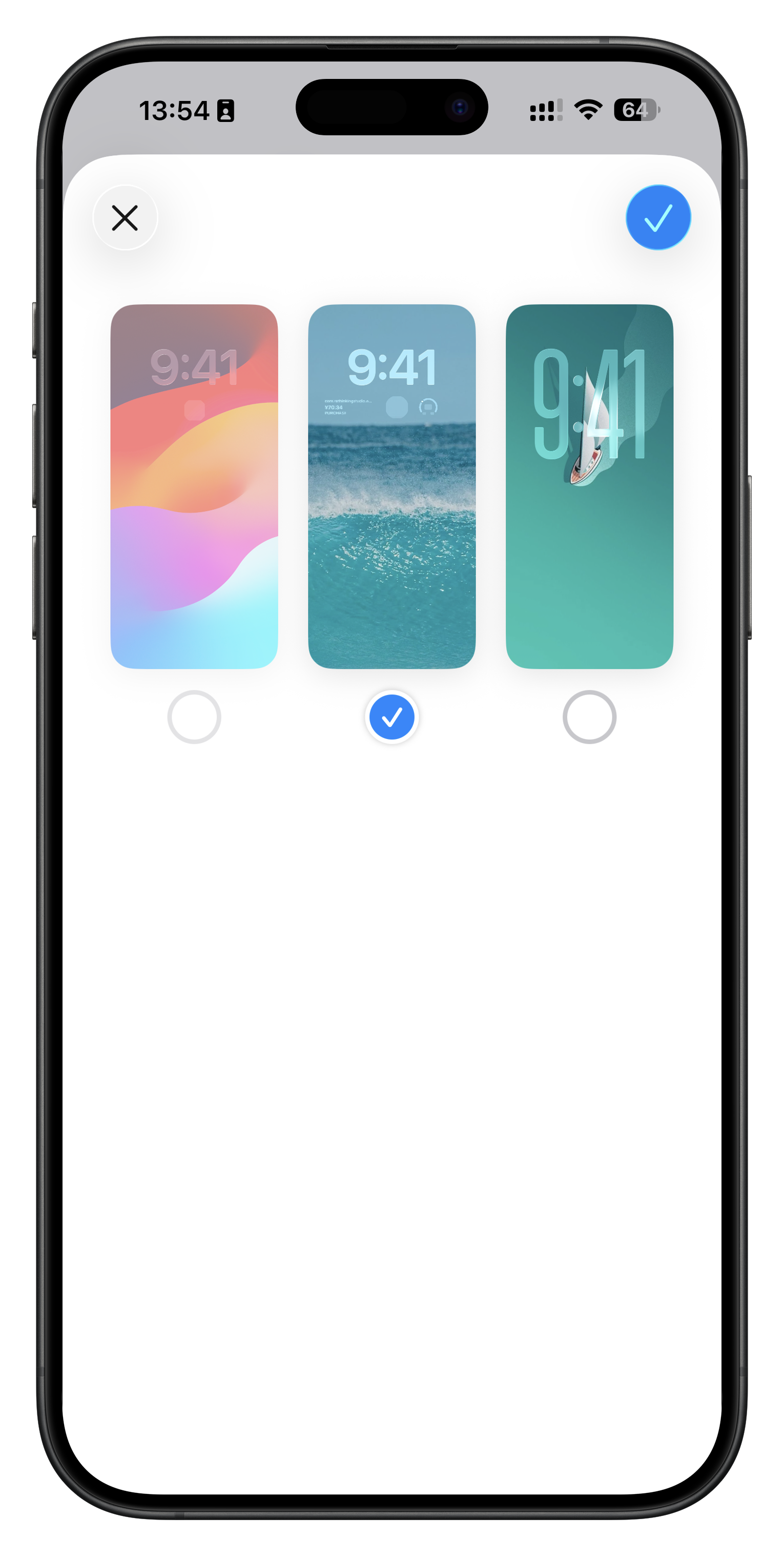
Since your phone may have multiple theme desktops, tap Wallpaper in the shortcut, then select the one you want to replace from the wallpaper list.
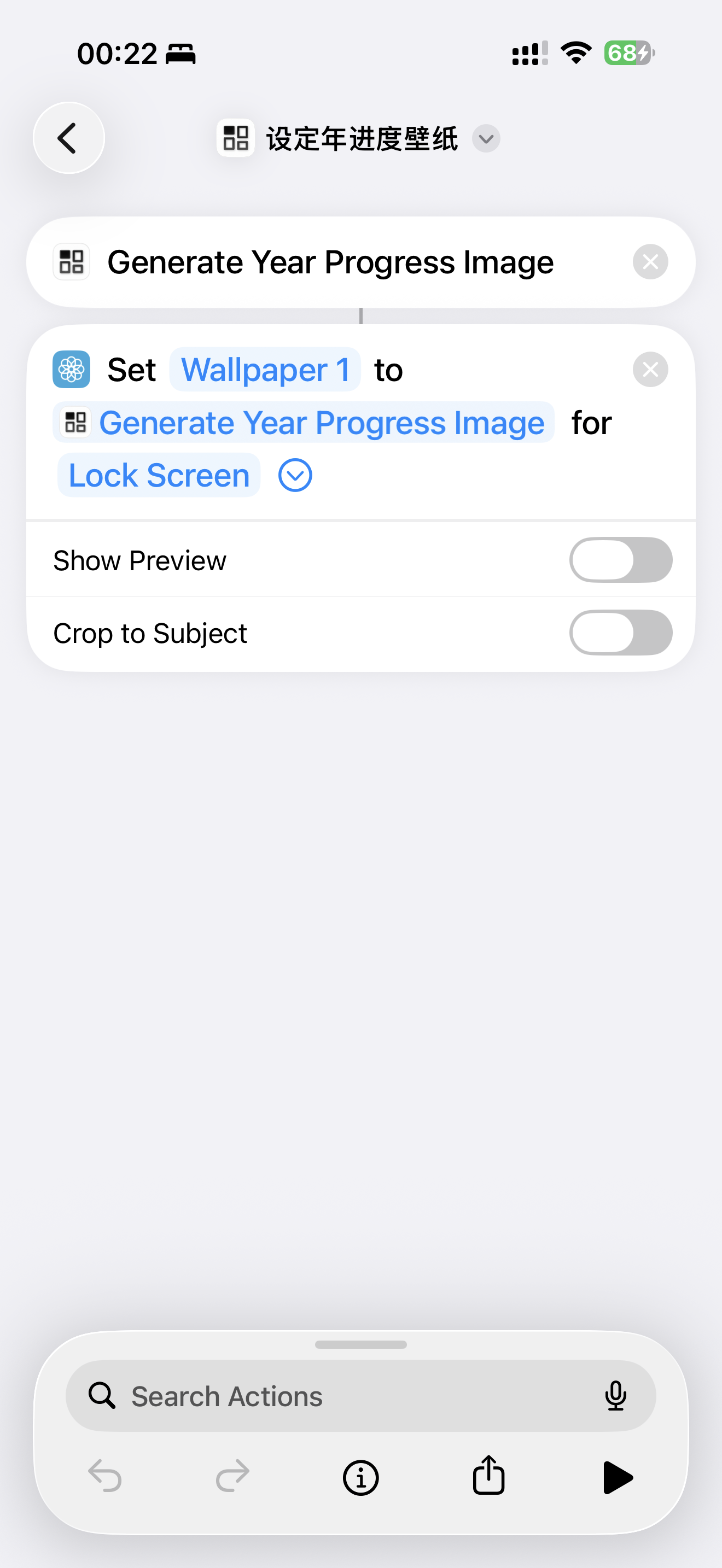
Please note: tap the arrow to turn off the display preview and crop to the subject.
3. Create an Automation
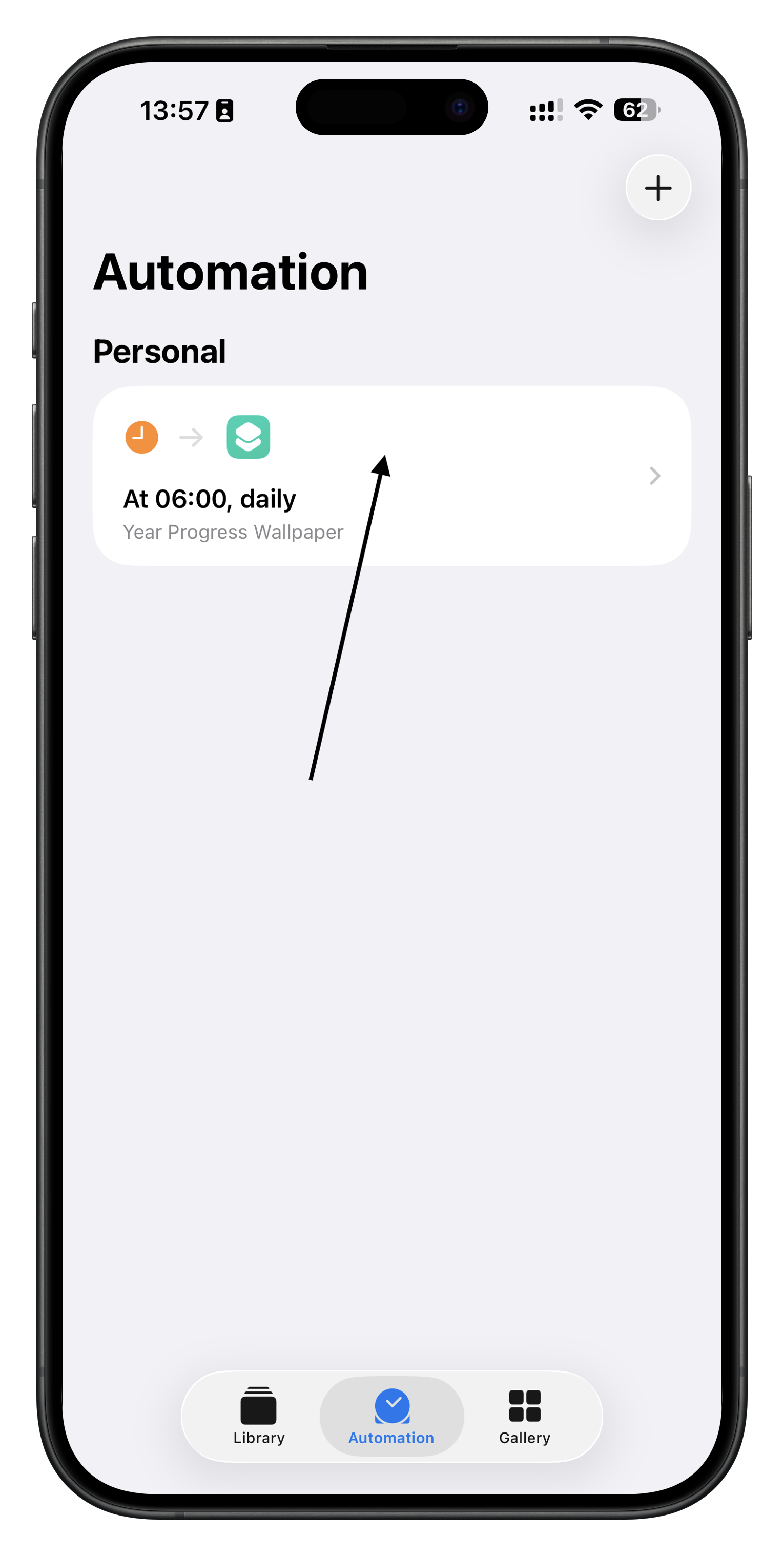
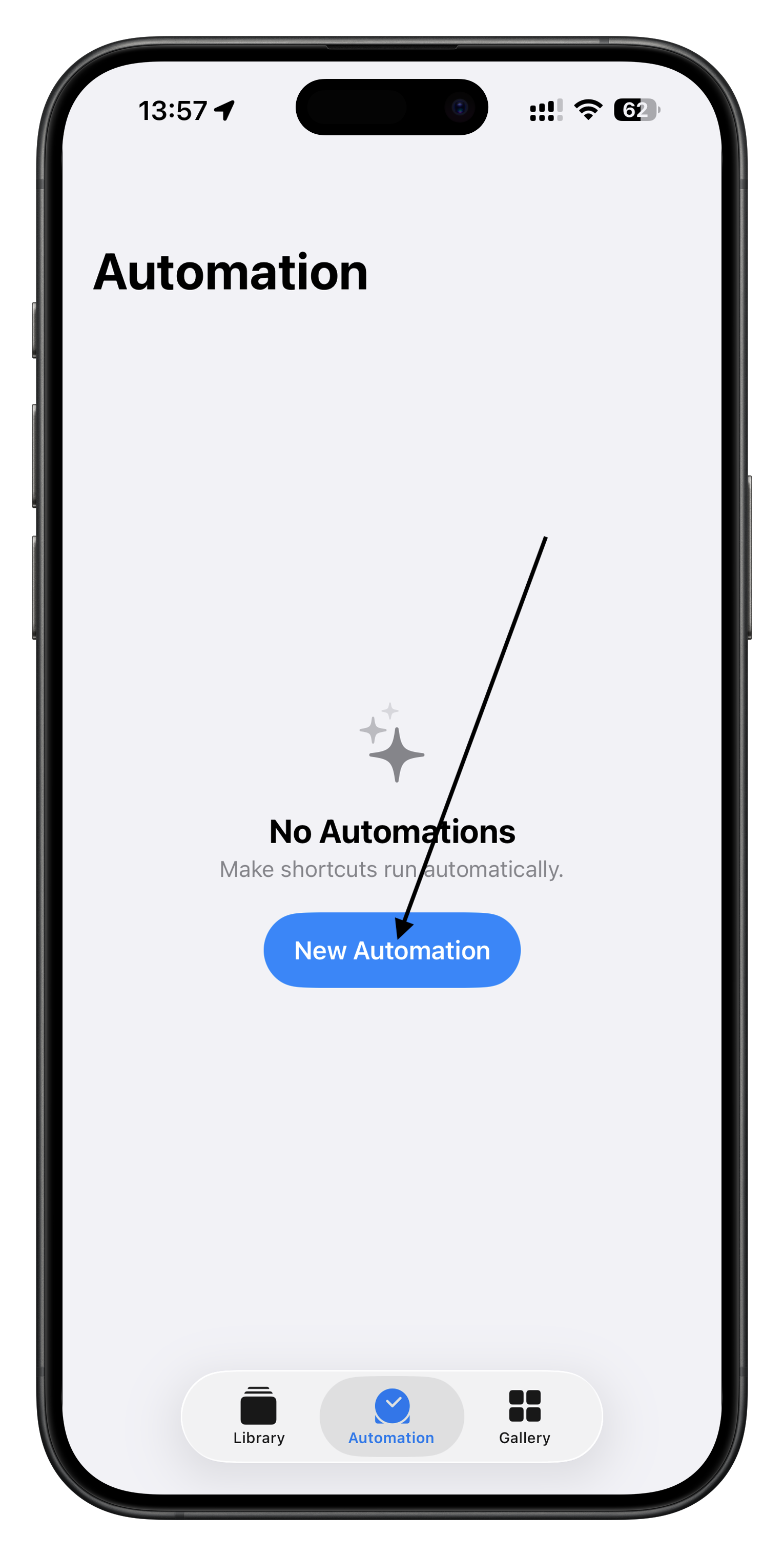
After making the necessary changes, tap Automation in the Shortcuts app. Then tap the New Automation button.
4. Select the Automation Type
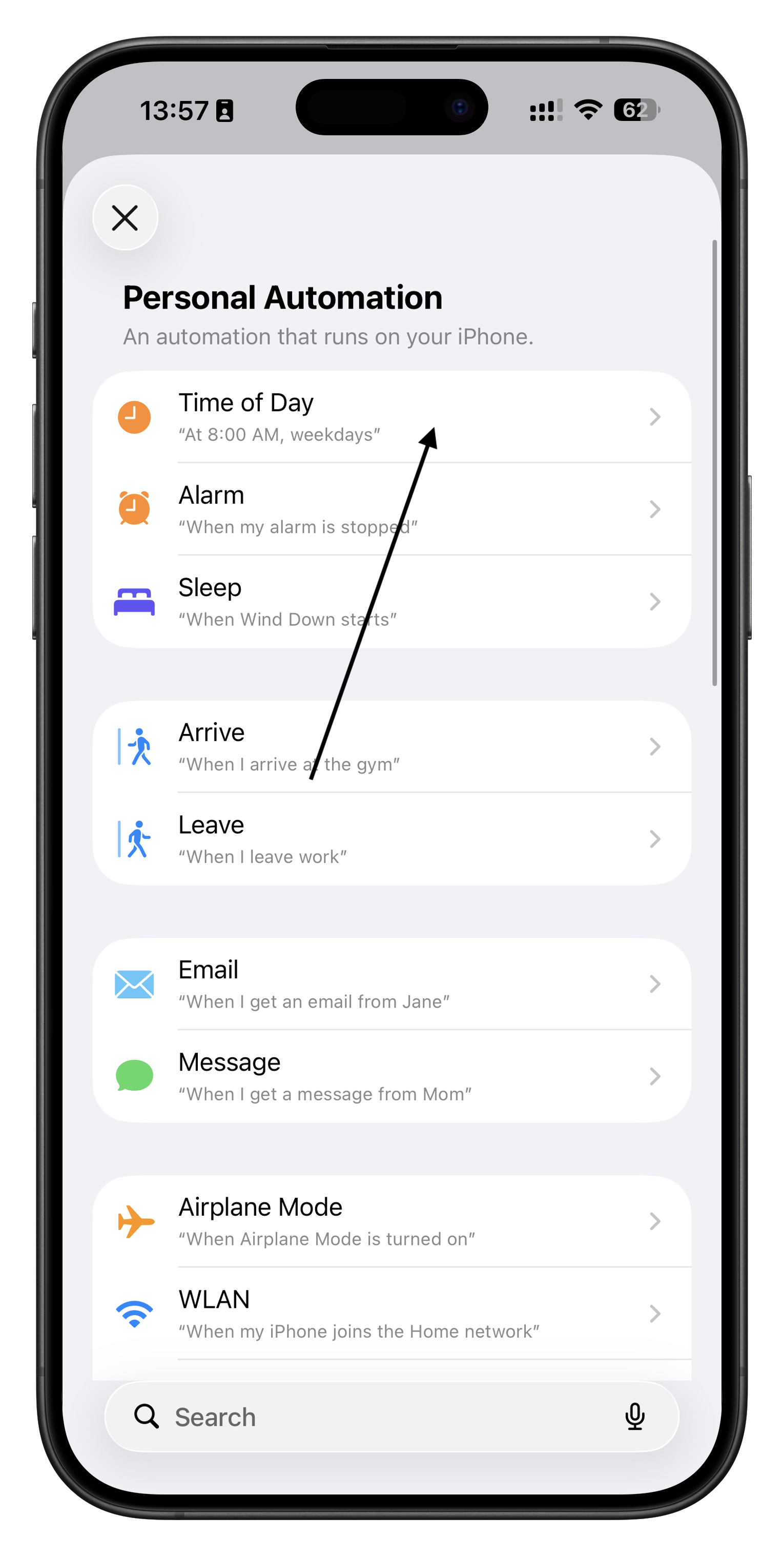
There are multiple types of automation. Here, we’ll choose Time of Day.
5. Configure the Automation
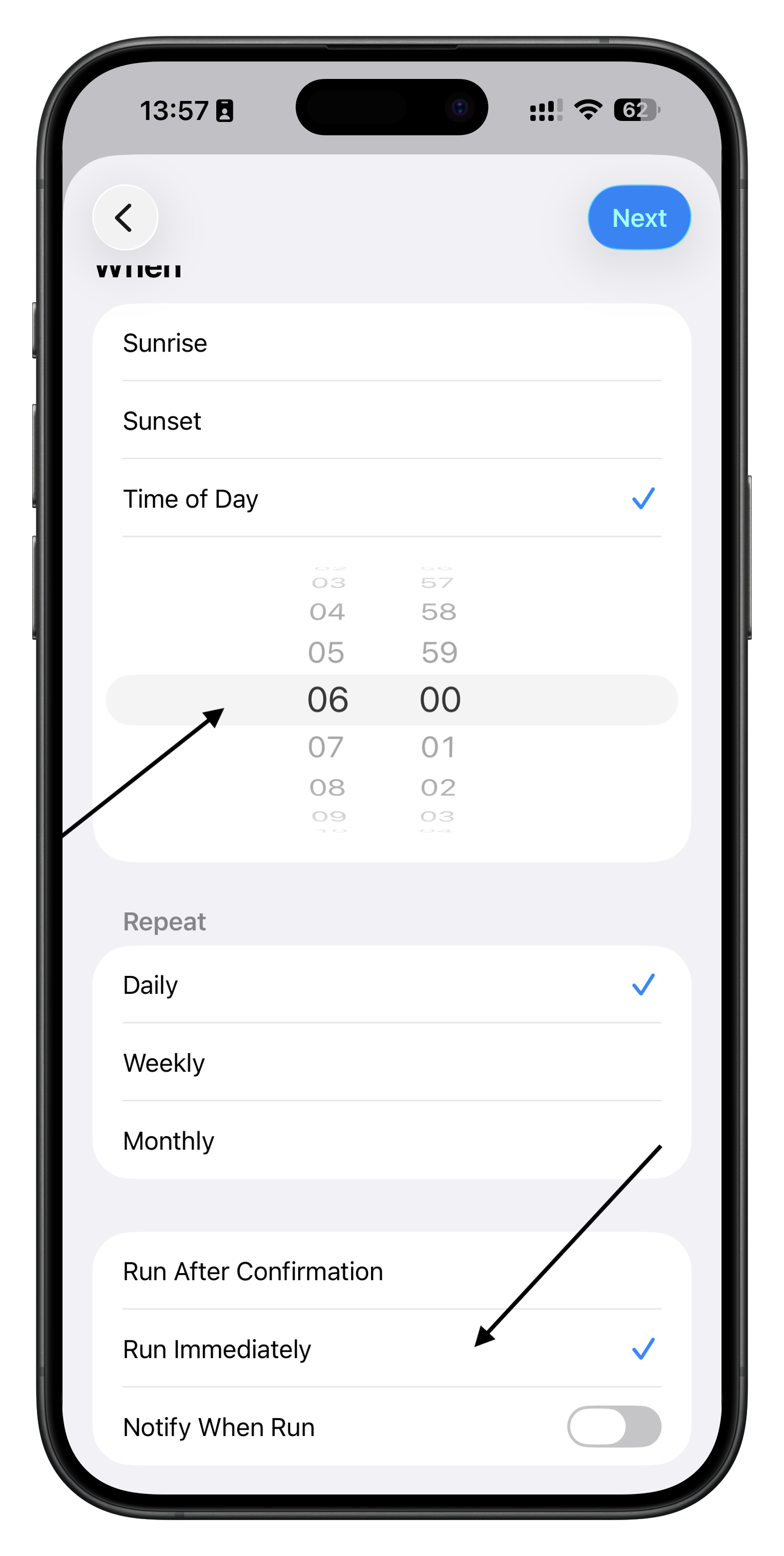
Here, we’ll set a time for the automation to run. In this example, I’ve configured it to run daily at 6:00 AM. Also, make sure to select Run Immediately below.
6. Select the Quick Action for Automation
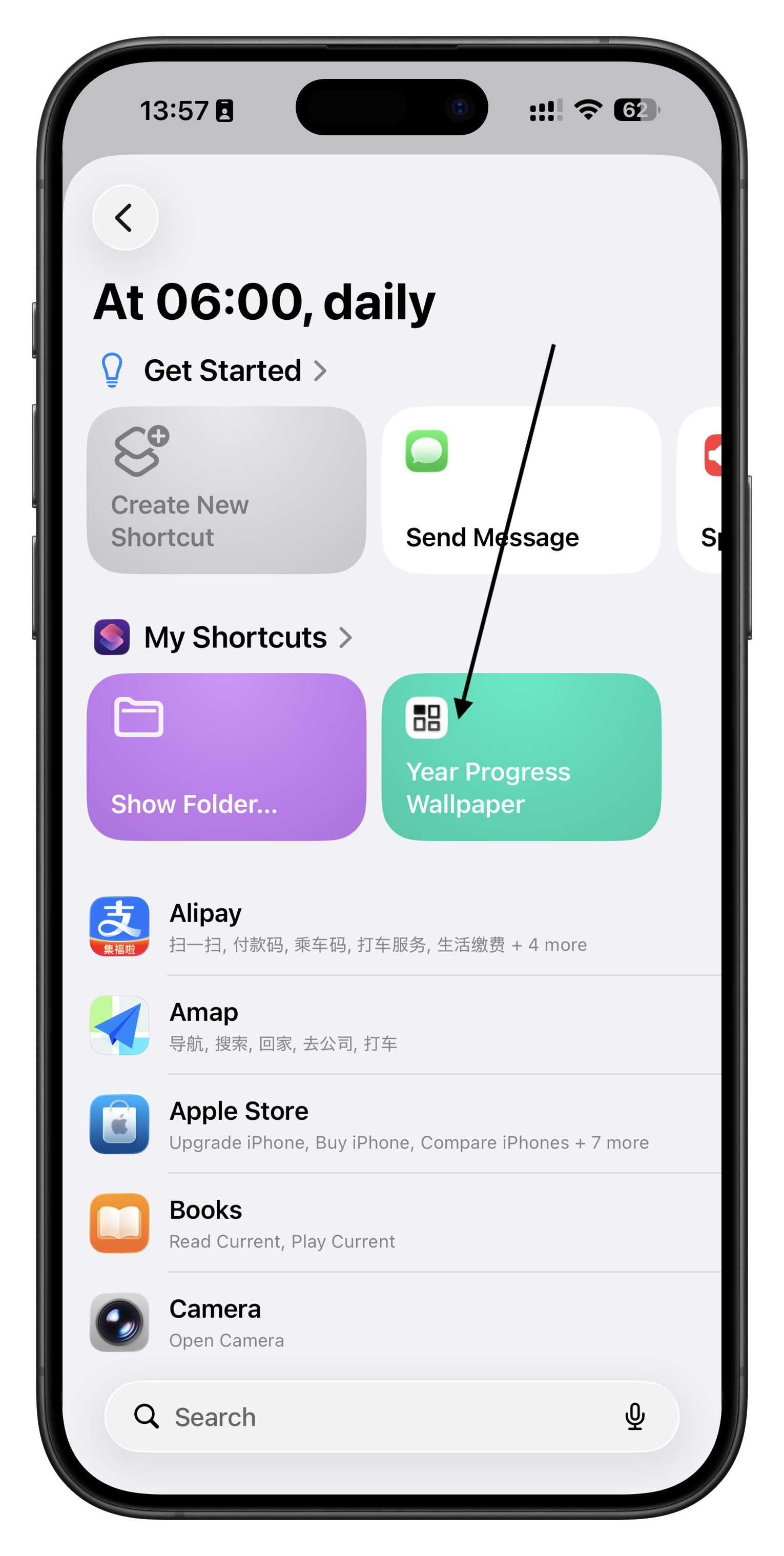
After tapping Next, the automation will prompt you to choose a shortcut to execute. Here, we’ll select the recently installed quick action.
7. Setup Complete
With this, all configurations are complete. At 6:00 AM daily, your lock screen wallpaper will update to the latest annual progress wallpaper.